
Why Isn’t My WordPress Website Not on Google Search Results? (Easy Fixes)
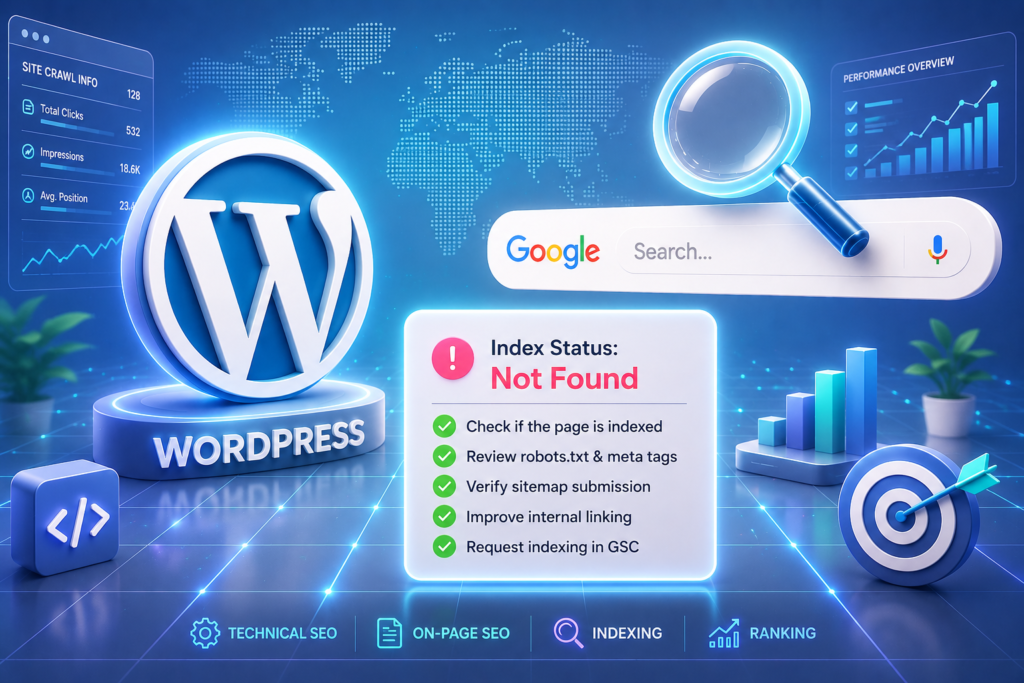
Picture this: you’ve spent hours designing a beautiful WordPress website, uploaded your content, and hit “Publish.” Excited, you Google your business name — and get nothing. If your WordPress website not showing on Google, you’re not alone, and the good news is, it’s usually a fixable problem, not a broken one.
Most beginners assume this means their site is broken or banned, but that’s rarely the case. In most situations, a WordPress website not on Google simply means the site hasn’t been indexed yet, or a small technical setting is blocking search engines from finding it — both of which you can fix in minutes once you know where to look.
Zero results. There is absolutely nothing.
At this time, you feel very disappointed. You try one more time, this time adding various keywords, yet your website still cannot be found online.
Just breathe. Don’t get panicked. It’s one of the most common problems which almost every newbie experiences when creating his/her own website. The best part is that your website is completely fine, and Google is not blocking your website from internet. Most of the time, a WordPress website not showing on Google is simply due to a minor, easily fixable misconfiguration behind the scenes.
In this guide, we are going to walk through 6 super simple fixes, step-by-step that will get your site out of the digital dark and onto Google’s search results. No complex coding required!
The One-Button Check: Did You Accidentally Hide Your Site?
Let’s start with the absolute most common culprit.
WordPress comes equipped with a setting that is supposed to ensure that your site does not show up on any search engines until it is completed. The feature is really helpful when you are making your website. You have to remember to turn it off when your website is finished. The website cannot be found by Google if it remains turned on. To be sure, you can check that using the WordPress Dashboard. First, go to your dashboard, then go to the settings options available in the left menu and choose Reading.
If the box is selected, you have to unselect the box and then press the Save Changes button.
Your Site is Brand New (Give the Google Bots a Minute!)
If your website was launched just yesterday or even a week ago, the simplest answer to why my site is not on Google is time.
Google’s algorithms, which are commonly known as “crawlers” or “bots,” regularly search the web to discover new sites. With billions of sites out there, it takes from several days to couple of weeks for Google to discover, crawl, and index a completely new site.
Imagine setting up a new brick-and-mortar store in a corner part of New Delhi. People won’t visit your shop until you personally invite them. To speed up this natural waiting period, we need to send Google an official digital invitation. This brings us to our next crucial step.
Claim Your Digital Territory via Google Search Console
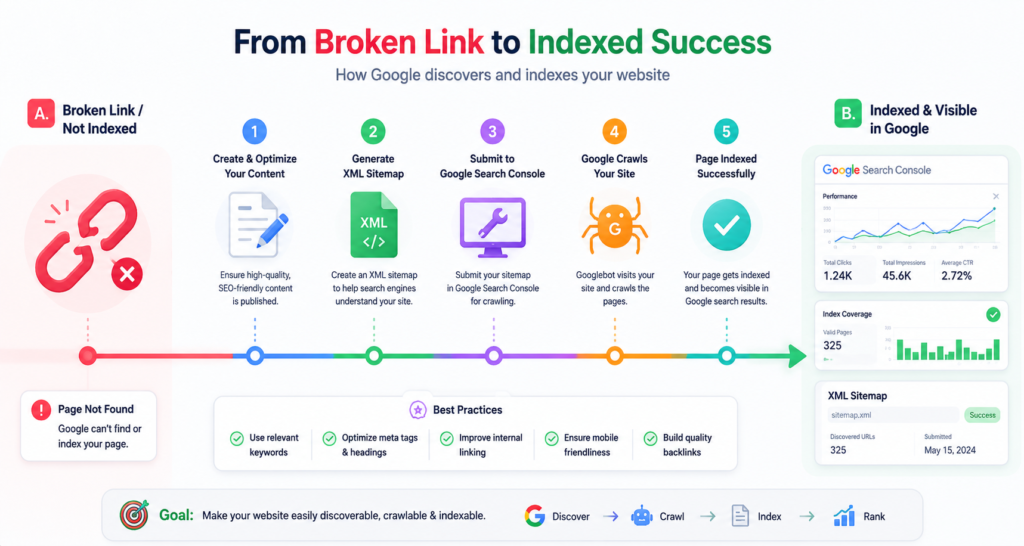
If you haven’t introduced your website to Google directly, you are relying entirely on luck. In order to take charge of your presence, you have to create your Google Search Console WordPress configuration.
Google Search Console (GSC) is the free utility offered by Google where you can check the performance of your site and more importantly, notify Google, “Hey, I am here!”
Below is how you do it:
* First, go to Google Search Console. Sign in with your Google account.
* Next, enter your website’s URL as a property.
* Then confirm that you own your site.
You can use SEO plugins, like Yoast or RankMath, to make it easy. They let you verify your site by copying and pasting a code.
Google starts keeping an eye on your site. If anything prevents you from getting ranked on search results, Google sends you an email via GSC.
Submit Your XML Sitemap (The Ultimate GPS for Google)
Once you have verified your Search Console, you need to hand Google a roadmap of your website. This digital map is called a WordPress XML sitemap. This is an uncluttered document that contains all your site’s pages, posts, and images; so, Google will have everything to index.
In case you do not have a sitemap, Google can find your homepage but will miss many other vital pieces of content like blog pages and service pages.
Submitting your sitemap is pretty easy.
If you have Yoast SEO or RankMath these tools will make a sitemap for you. The sitemap could be accessed through your website dot com slash sitemap index dot xml. There is a section called Search Engine Visibility at the bottom. Another way to achieve this is by accessing your Google Search Console account.
Following this, the left part of the interface will provide an option related to different types of sitemaps. Pick the Add sitemap option and write sitemap index.xml. The next thing you will see is the green confirmation message that submission has been successful after the procedure has been summarized.
Double-Check Your “Noindex” Page-Level Settings
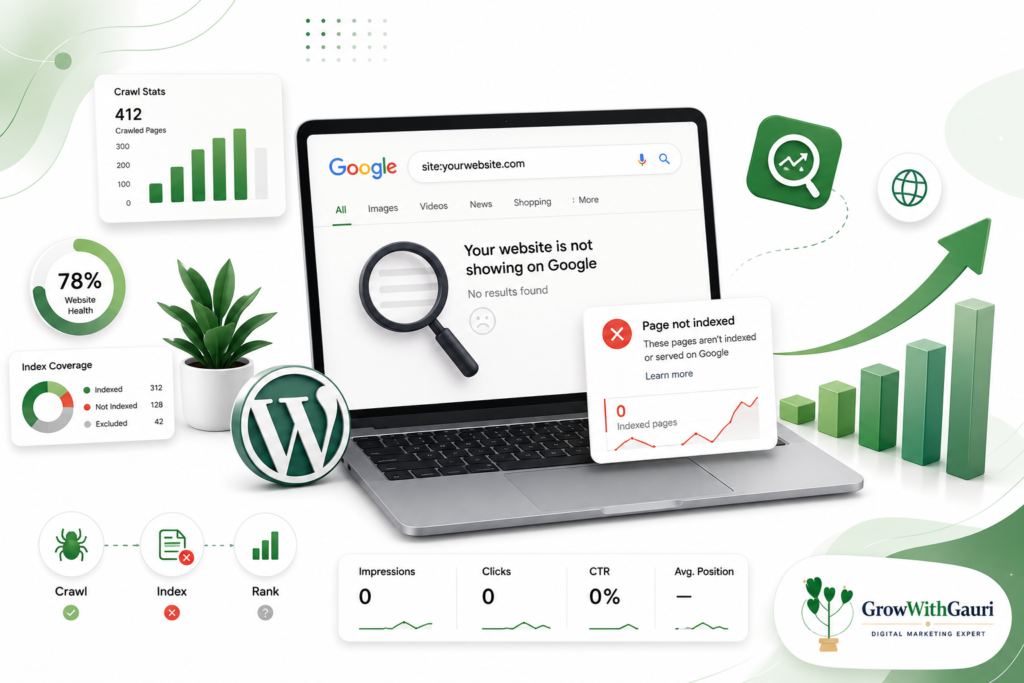
Sometimes, your homepage might show up on Google, but a specific, critical blog post or landing page won’t appear. Usually, there are some WordPress SEO errors regarding a particular page that must have gone wrong when creating the site. You have a lot of choices when it comes to SEO plugins. These plugins let you make a page by adding ‘noindex’ to it.
It is like you are instructing Google to ignore that webpage. To verify that this was accomplished properly, you must access the page via your WordPress dashboard and navigate to your SEO plugin section, for instance, Yoast. Look for the Advanced section. Locate the setting that asks: “Allow search engines to show this post in search results?”
It should be set to “Yes”. If it is not, adjust this setting to “Yes”, save your post, and Google will index your website during the next crawl.
Identify URL canonization (Mixed URL Problems – HTTP vs HTTPS)
Google thinks of http://yourwebsite.com and https://yourwebsite.com as two websites.
The little lock symbol next to your website address is called an SSL certificate.
If this SSL certificate is working properly but your WordPress settings are not set up for http://yourwebsite.com, Google may have trouble finding your website.
This is because Google treats http://yourwebsite.com and https://yourwebsite.com as websites.
So if your WordPress settings do not work well with http://yourwebsite.com, Google will have a time indexing your website. Ensure your website URL stays consistent:
Go to Settings > General in WordPress.
Look into WordPress Address (URL) and Site Address (URL).
The URL addresses should be identical and include the “https” protocol if you use SSL certificates.
Consistent URLs make the crawling process very easy for Google algorithms.
Conclusion
Even if you feel upset at the thought of your website being unindexed from Google, you shouldn’t forget that fixing this problem has wonderful benefits. You need to start by optimizing your page. You should then submit it again to the Google Search Console and create an XML sitemap.
Keep in mind that it normally takes Google around 2-3 days to process your requested changes after you have performed the necessary actions on your side. Always provide visitors with valuable content, and they will come to your website!